 |
| Microsoft stopped support Windows XP |
Most are aware that Microsoft is soon going to end supports for Windows XP and Office 2003. There won’t be any support options, bug fixes or security updates for these Microsoft products after April 8, 2014. If you have not yet started the migration to a modern operating system, you might want to take a call on it. ‘The end of life’ is the phrase used by mark the end of automatic fixes, updates, or online technical assistance for the Windows XP System.
Press "windows" + r to open Run and type regedit to open Registry.
 |
| regedit |
Naviagate to :
 |
| HKEY_CLASSES_ROOT \ Drive \ Shell |
HKEY_CLASSES_ROOT \ Drive \ Shell
Right click on the Shell key and create a newkey and name it runas
Right-click the default key and select Edit Value, type in the Data section Defrag and confirm with OK.
Right on key runas, created in the first step, and create a new / given key name command
Right on the default key Information section and select Edit Value, type defrag% 1-v Confirm with OK.
Exit Registry and restart.
 |
| SLIMDRIVER |
Step by Step process:
Step: 1
Step: 2
Now open the Slimdriver from windows start button and click on START SCAN the software will check the hardware components and it will search for the latest hardware drivers from the manufactures website
 |
| step 2 |
Step: 3
Now the SlimDriver will list the all available hardware updates according to the hardware category now click on download update corresponding to each driver update the Slimdriver will automatically download the update from the official site
it is preferred to create a restore point( a dialogue box will appear) and then reboot your system after installing hardware update.

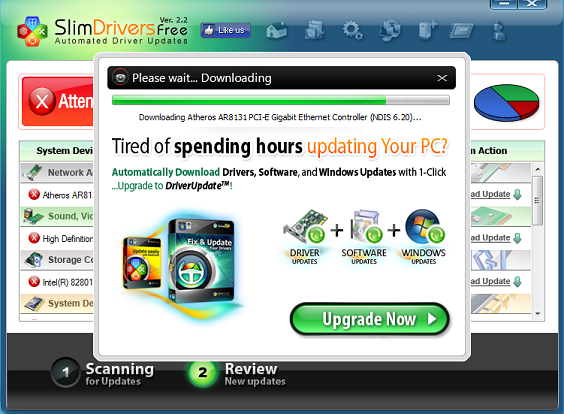
SlimDriver will be a very hand tool for those who use laptops ,where there is need to update WiFi,Bluetooth , Graphic , USB , webcams drivers it is the leading software tool under update category in CNET , Brothersoft , Softonic and many other sites .It is a free tool so our recommendation is to give it a try and see the result.
 |
| Windows 8 USB Recovery Drive |
- You should check if there is already Recovery partition present on your computer, Because to create a USB recovery drive there should be a recovery image present on your computer.So to check for the recovery image on your computer.
- Open Command Prompt with Administrator rights.(Search for Command in start menu, Right click on command prompt and hit on "Run as Administrator")
Now enter this command on your command prompt recimg /showcurrent and hit enter.As shown in below screen shot.


After entering these two commends you will be able to see the process of creating recovery image on your computer as shown in screenshot below.You can delete the recovery image from your computer to save the memory after completing of creating the USB Recovery drive.
- mkdir C:\RefreshImage and hit enter
- recimg -CreateImage C:\RefreshImage and hit enter

Creating Windows 8 USB Recovery Drive
To create a recovery drive search for the "recovery drive' in windows search. and click on Create a recovery Drive. (Note you must have administrator rights, it might ask you password.)
- When the tool is opened check the box to Copy the recovery partition from the PC to the recovery drive. And hit Next
- Now Insert the USB drive into USB port, make sure that there is no information stored on your USB, as the recovery tool will completely wipe out the data stored on USB.
- And then select the usb from the list of available USB drives for storing the recovery image.And Hit next.And then Hit on Create.
- That's it! You have created Windows 8 Recovery image.You can now use that to refresh and reset your windows 8 computer.
- If you want to store the recovery image on your computer then you can hit on "Finish" or if you want to save the space you can delete the recovery image by hitting on "Delete".
- After everything is done you can remove the USB from your computer.
Source & Image : alltechtricks.com
PC’s performance will slow down at 3 Instances:
- At the time of BOOTING
- During normally usage.
- While Shutting Down.
Tips to Speed Up Windows Performance:
Use a Good Antivirus:
If you are not using a Good antivirus then the chances for your PC getting infected are pretty high.In this present world of Internet nothing is safe online.As windows is the most widely used operating system,many new viruses/trojans are created daily to exploit windows os.
Removing unwanted Startup Applications:
Sometimes even after the pc starts, few programs keeps on loading thereby stopping you from performing your operations.In some cases, you might come across a strange WINDOWS error known as “Blue Screen Of death”.To avoid this you have to limit the number of startup programs.Lesser the number of startup programs greater will be the pc startup speed.
- Press” Windows key + R”(shortcut key for RUN)
- A RUN box will open .Type “Msconfig” (without quotes) in the RUN box and hit ENTER. It will take you to the “system configuration”.

- Select “START UP” from the Tab’s at the top and uncheck all the unwanted programs that you don’t want to get started along with startup. Now click “OK” and then “APPLY”.Restart the pc you will definiately notice an improvement in startup and booting speed.
Delete all the Temporary files and folders:
Windows stores some temporary files which are created while you are running any sort or applications. Deleting those Temporary files will helps you to increase your PC Performance during normal usage. Follow the steps below to delete the temporary files
- Press” Windows key + R”.
- In the RUN box type “%temp%” (without quotes) and hit enter.
 |
| Temporary Files and Folders |
- It will take you to a Folder where all the Temporary files are stored. Select and delete all the files. You may not delete all the files there, just skip those files which are undeletable.
Disk Clean Up:

Disk cleaning will delete all your temporary files from any drive of your Disk. Here is the Procedure
Press” Windows key + R”.
Type “cleanmgr” (without Quotes) and hit enter.
Select the particular Disk that you want to Clean and click on “OK” and now you can delete all the temporary files. Repeat the same procedure for all the drives and it will really free some amount of memory in every drive.
Defragment Disk:
For Defragmenting the Disk follow the steps below:
1. Right click on any drive and select PROPERTIES
2. Click on TOOLS and select DEFRAGMENT NOW
3. ANALYSE the dick first and then DEFRAGMENT it.
Delete ”Old Windows” Files:
Normally your files of OLD version of windows can be removed easily using DISK CLEAN UP. So you can follow the same procedure to delete the files of OLD WINDOWS
Reduce Files on Desktop
Move all the files on your Desktop to any other separate drive.Every shorcut on desktop consumes 20kb of your RAM.If there are too many shortcuts then it is definitely going to effect the performance speed of your computer.You can use shortcuts on the desktop for easy navigation (Shortcuts are less in memory).
Using Proper Cooling System:

Make sure that your Cooling fans are working fine. Try to clean the Dust from the surface of the fans to make it work properly. Provide good ventilation for PC’s and try to maintain the room cool so that Pc can perform better.
Removing Visual Effects:
Follow the steps below to disable unwanted Visual effects
1. Go to CONTROL PANEL > SYSTEM AND SECURITY > SYSTEM >ADVANCED SYSTEM SETTINGS ( A box will pop up)
2. Click on SETTINGS of PERFORMANCE section.
3. There check all the visual effects and remove those which are not need for your and save those settings
Deleting Internet Cache
There are many software’s available on internet to Delete internet cache but, CC Cleaner is the free software and its very effect in deleting the file temporary files.
Use Revo Uninstaller to uninstall programs:
Completely uninstall programs and applications using a program like Revo Uninstaller.
There are many Good software’s available on internet to fix all your registry errors. You can pick anyone of them.
I will suggest you to use TUNE UP UTILITIES as it perform better than much other software.
Using Ready Boost:

Connect a USB stick to a Windows computer – even on Windows 8 – and it will ask if you want to speed up your system using ReadyBoost. ReadyBoost was introduced in Windows Vista, where it was a heavily promoted feature.
Upgrade your Hardware:

It’s inevitable that upgrading to a new version of an operating system or application comes with a bit of a learning curve. With Windows 8.1, though—and its predecessor Windows 8—the curve is steep, and just finding simple tools and features can be a challenge.
Windows 8 isn’t just a new version of Windows, it’s a completely different OS in many ways, with its own unique features and conventions that may confound even the most ardent Windows users. Under the hood, most of the familiar Windows tools are still there, but they’re buried in strange places where they can’t be easily located, especially not when Microsoft took away the coveted Start button.
When Microsoft launched Windows 8.1, it solved much of the dilemma by bringing back the concept of the Start button. It is not identical in either form or function its predecessor, but it does provide simple access to a wide variety of common tools and functions.
I suggest you forget about the Start button, though. The simplest way to find anything in Windows 8 or Windows 8.1 is the Search charm.
Let’s say you want to find an app that you don’t have pinned as a tile on the Windows 8 Start screen. You can tap the arrow at the bottom left of the display to pull up the complete list of Apps. They’re sorted alphabetically by name by default, but you can also tap the arrow next to the word Apps at the upper left to reveal a dropdown list with options to sort the apps by category, most used, or date installed.
Who has that kind of time? Just open the Charms bar, tap the Search icon at the top of the charms, and start typing the name of whatever it is you’re looking for. As you type, Windows 8.1 refines and presents the results. In my experience, most apps or tools can be found within the first three or four letters.
If you’ve used Windows long enough, you’re probably familiar with the Control Panel and the tools available there. You can right-click the Start button in Windows 8.1, select the Control Panel, and then navigate through the options to find the one you’re looking for. Or, you can open the Search charm and just type “user” or “mou” to quickly jump straight to the User Accounts or Mouse settings.
Regardless of how you choose to sort the apps, you still have to sift through them to find the one you’re looking for. Depending on how many apps you have installed on your Windows 8.1 PC, that may be simple, or it could be a daunting and tedious task.
This concept isn’t unique to Windows 8.1. The Spotlight search function in Mac OS X and the search function in iOS provide a similar universal search function. There are also third-party tools like X1 Search, which can almost instantly search all of your files and content no matter where you have it stored.
Embrace the Search charm in Windows 8.1. It is your best friend, and the most convenient and efficient way to find anything you need.
Via: PCWorld

This is because, before disconnecting a device from your computer, it is essential to first prepare Windows for the change using the feature. Doing so ensures, Windows has stored any data back on the device and released the device from its hold. If you remove the device without using the Safely Remove Hardware feature, you run the risk of damaging your files and corrupting your data.
However, at times you may notice that the Eject window does not appear even after you click on the icon of the device to be removed or ejected. If you try and open “Devices and Printers” in the Control Panel, that will fail to open as well. What do you do in such situations, where the Safely Remove Hardware is not working, or the icon is missing? Try this solution, it might just work in your case, as it did in mine.
Step 1
Now right-click on the USB Dive (in my case hp USB device) and from the same location in the Properties, change the default setting and select instead Better Performance. See if this helps. Now go back to the default Quick Removal setting again. If it does, great!

rundll32 shell32.dll,Control_RunDLL hotplug.dll
Then, just hit ‘Enter’.


Twitter has evolved from its early days of tweets about what folks ate for breakfast, and for many of us it is now a valuable source of information. From breaking news to tweetversations about tech, Twitter plays an important role for some. Sadly, the limited choice of apps to work with Twitter on Windows 8 are not very good.
I am a heavy Twitter user, as the fact I am closing in on 50,000 tweets demonstrates. I am on the network all day so I have heavily tested many apps on all mobile platforms. I have favorite apps, sometimes more than one, on all platforms save Windows 8.
I don't want to pick on the Windows 8 Twitter app developers so I'm not going to point fingers at them one by one. It's sufficient to say that for me, none of them are very good. Some of them are buggy on top of that, rendering them almost unusable.There aren't a lot of Twitter apps on Windows 8 and I'm sure I've tried all of them. I find glaring problems with each of them, severe enough to make working with Twitter unpleasant on my Windows 8 tablet. Even Twitter's own app on Windows 8 is annoying, with slow operation and less than optimal design choices that make it so.
Either they don't stream updates consistently, don't handle lists well, or have direct message access poorly implemented. Some apps don't handle several of these functions well. On top of these issues, often the user interface on most of them is not simple and clean, with some odd designs that don't display lots of information at once.
I will point the finger at Twitter and its Tweetdeck web site on Windows 8. It's not the smoothest interface but it's decent, until you hold the tablet in portrait. Tweetdeck is almost unusable in portrait, making it no good on a tablet. It also doesn't handle snap view in Windows 8 very well either, another deal-breaker.
I love using my Windows tablet but this lack of good Twitter operation is making it hard to head out each day with this tablet. Both the iPad and my Android tablet serve me well on daily work outings, including Twitter use, so the Windows tablet will sit at home more often until this glaring Twitter deficiency on Windows 8 is addressed by just one good app. It's a shame as I'm finding Windows 8 to work well for me in every other way.You can access Twitter using the browser but it's not as good as using apps on the iPad and Android. Tweetbot on the iPad and Plume on Android epitomize what defines good apps that makes working with Twitter a joy. And these aren't the only ones on those platforms, there are plenty others. There is a desperate need, at least for me, for an equivalent app on Windows 8.
Via: ZDNet

It’s safe to say Windows 8 hasn’t been the smashing success Microsoft hoped. After more than a year on the market and one major update, Windows 8 is just flirting with a 10 percent market share. That’s higher than Vista or OS X, but dwarfed by Windows 7 and even (still!) Windows XP.
For developers, though, that might be a good thing. At the App Developers ConferenceTuesday, a group of developers discussed why they’re funding apps solely for the under-represented Windows 8 platform.
Claiming new territory
In large part it comes down to being first. “It’s a buy-low situation. It’s a good time to get in near the ground floor,” said Neil Sorens of Zen Studios.
Kenny Rosenblatt of Arkadium agreed. “iOS and Android, those markets are so competitive, and here’s a new option. It’s easier to make your game get discovered.”
“I think we’re about three months away from a developer saying they’re making a million dollars a month on Windows 8,” said Rosenblatt. “Everyone is taking this wait-and-see approach,” he continued, “but this is Microsoft. They have the money to throw at this problem, and they will succeed in the long term.”
Developers want more from Microsoft
Windows 8 is, “probably a couple years behind [other platforms] in terms of third-party support,” said Sorens. Rosenblatt agreed, saying that the platform won’t evolve until non-Microsoft payment options and ad platforms become commonplace in Windows 8 apps. Of course, that’s a bit of a chicken-and-egg issue, since those tools might not appear until there are more developers and vice versa.
“Analytics systems and user acquisition systems are nonexistent,” said Rosenblatt. “If you don’t want Microsoft’s support, you’re basically [trapped] in a black hole. You’re hoping Microsoft features you.”
These third-party tools don't exist because, until very recently, Microsoft did not provide a means for those tools to exist. The recent 8.1 update does allow for third-party analytics tools, which alleviates a huge handicap for Windows developers who rely on this data.
Windows 8 is also, according to Sorens, much more stringent about app certification than iOS and Android. “It’s closer to [video game] consoles in terms of difficulty for getting certified,” he said. This dissuades smaller developers with fewer resources from jumping onto Windows 8 development.

The number one complaint among developers trying to sell their software in the Windows Store isn't sales numbers or Microsofts lack of support: it's the store interface. There aren’t many applications in the Windows 8 store, but even those that are find it hard to break through the noise.
“The store interface is not very good for discovery,” said Sorens. “It’s a huge disincentive for creating original content,” because your best bet is to optimize for common search results or clone other people’s ideas instead of trying to build a good app that becomes popular, thereby climbing to the top of a "Highest Grossing" list that other Windows 8 users can peruse to figure out what everyone is playing.
Rosenblatt was more blunt. “If I threw up on the screen, it would look better than what their store looks like.” And the worst part, according to Rosenblatt, is that Microsoft knows about all these problems. “Everything I brought up to them, they knew.” They just don’t do anything about it until enough developers complain loudly enough to validate their suspicions.
The takeaway? If you’re a developer, the Windows 8 platform is still ripe for an Angry Birds-style success story, though it’s certainly still a risk.
But consumers? Maybe hold off buying that Surface tablet until one of those success stories comes around.
Via: PCWorld
Via: PCWorld

Even those who don't like Windows 8 should consider it for its superior security as opposed to older Microsoft operating systems, if nothing else, the company says.
According to its latest Microsoft Security Intelligence Report, machines running Windows XP are six times more likely to become infected than machines running Windows 8, the report says. The raw numbers are that 9.1 Windows XP machines need to be cleaned per 1000 versus 1.6 Windows 8 machines.
The reason, Microsoft says, is that Windows XP's data execution prevention (DEP) is old and doesn't address modern threats as well as the defenses in Windows 8.
People figured out how to get around DEP as a mitigation," says Holly Stewart, program manager for Micrsoft's Malware Protection Center.
Microsoft stops supporting Windows XP next spring and has been urging customers toupgrade to a newer operating system. Worldwide Windows XP makes up 21 percent of the OS market, Microsoft says.
It's not just Windows XP with an infection problem: Windows 7 machines are more than three times more likely (5.5 per 1000) to become infected than Windows 8 machines.
In addition, Windows XP machines also encounter more malware than Windows 8 machines, with 16.3 percent of XP machines encountering it vs 12.4 percent of Windows 8 machines, the report says. Stewart says she doesn't know why Windows 8 machines face fewer threats. Windows 7 computers have the highest encounter rate with 19.1 percent.
Microsoft gathers data on Windows computers through its Bing search, Outlook.com accounts and Windows users who agreed to share data about their activities with Microsoft, adding up to information on billions of Internet transactions.
Windows 8 users supplement security
One of the big selling points of Windows 8 is its security, part of which is supplied by Windows Defender anti-virus.
OPSWAT security management specialists say that despite integration of Windows Defender in the new operating system most customers run third-party anti-virus software, too. That's 65 percent of the Window 8 users from a sample of 840 monitored by OPSWAT.
Lower percentages of Windows XP users (9 percent) and Windows 7 users (20 percent) also run third-party antivirus software, OPSWAT says.
Old Surface Pro is cheaper
With the Surface Pro 2 expected to ship in December, Microsoft is cutting the price of the original Surface Pro by $100, making the current prices $699 for a 64GB model; $799 for a 128GB model and $999 for a 256GB. The prices for Surface Pro 2 are $899, $999 and $1299, respectively. Surface Pro 2 also comes in a 512GB model for $1799.
Microsoft has been trying to unload its inventory of the original Surface Pro for months in the run-up to Surface Pro 2. It cut $100 off original Surface Pro prices back in August, so the latest offer makes it $200 cheaper than it was originally. The latest deal expires at the end of the year.
All hands on deck
Microsoft's corporate Vice President of Surface Computing Panos Panay personally hawked the product recently at malls around the country. He addressed about 150 potential customers at Fashion Centre at Pentagon City in Arlington, Virginia, according to a story in the Washington Post, in advance of the official launch of the new Surface 2 and Surface Pro 2 tablets.
He also popped up at the Westfield Century City mall in Los Angeles, for a similar engagement, according to a story in the Los Angeles Times.
While he seems a bit overqualified for pitching computers directly to consumers, it's hard to fault his enthusiasm.
Calling all cars
Windows 8 is making its way into police cars in the U.K., or at least into trials at the Hertfordshire Constabulary, according to a TabTimes report.
The tablet in question is a ruggedized 8.4-inch Panasonic that officers can carry with them to access police applications.
Via: PCWorld

This should obviously make Microsoft very happy indeed as it moves to migrate its customers from Windows 7, Vista, XP, and the more recent Windows 8 all to Windows 8.1, the company’s latest OS. The 8.1 iteration, which was not tested in the report, launched last month. Microsoft maintains that it is even more secure than its immediate predecessor, incorporating security improvements “including remote business data removal, improved biometrics support, pervasive device encryption, improved Internet Explorer, malware resistance and device lockdown,” according to a Microsoft blog post.
Via : Slashgear.com

Of course, that’s still just a tiny fraction of the overall PC market: 1.72 percent, as measured by the firm. But combined with the number of users running Windows 8, the combined market share of the Windows 8.x OS topped 9.25 percent. At its current pace, that share should top 10 percent by the end of the year. (In September, Windows 8 commanded 8.02 percent, and Windows 8.1 0.87 percent, for a combined share of 8.89 percent.)
And sorry, Linux: Windows 8.1 now tops you, too. Linux commanded 1.61 percent of all PCs measured by Net Applications for the month of October. Mac OS X 10.8 was used by 3.31 percent of users, Net Applications found.
Of course, the bad news for Microsoft is that its two older operating systems continue to dominate the PC landscape. According to Net Applications’s figures, more than 46 percent of users run Windows 7, and 31.24 percent of users continue to run Windows XP. Both numbers dropped less than a percent from a month ago.
XP’s marketshare is undoubtedly the most troubling, since Microsoft will discontinue support for Windows XP by next April, leaving the 13-year-old operating system without any way of being patched. The “XPocalypse” will leave PCs in a “zero day forever” mode, exposing them to any and all future vulnerabilities. Businesses starting to panic have chosen Windows 7 as a stopgap, however.
“Since Windows 8 launched, our guidance to business customers has been to continue Windows 7 migrations that are already in process,” a Microsoft representative told PCWorld in a statement last month. “We recommend our customers continue these deployments and consider Windows 8 in targeted scenarios where it makes the most sense, such as highly mobile workers. As Windows 8 launched less than a year ago, we are still seeing a lot of businesses completing those planned Windows 7 migrations now.
“Every business is unique and has different needs,” the Microsoft representative added. “The most important thing is that businesses move off XP before April 8, 2014, and onto a modern operating system, and moving to Windows 7 will not only ensure that customers remain on a supported version of Windows, but they will be on a path to Windows 8 and can take advantage of innovations in the Windows 7 platform, including enhanced security and control, increased user productivity, and streamlined PC management.”
Unfortunately, there’s about five months before the XPocalypse draws nigh. Although Microsoft stands to benefit from the shift—31 percent of the PC user base stands to upgrade to something, whether it be Windows 8 or Windows 7—there’s a real threat to users who remain on the older OS. It’s worth remembering—again—that if you’re one of those affected, consider making an upgrade to a newer OS a priority.
Via : PCWorld

Microsoft’s operating system may be the primary engine in most businesses, but there is a world outside Windows. Microsoft offers an array of services that address some of the most common headaches small businesses face and enable them to operate like much bigger organizations. Here are five of the gems.
1. Office 365
You can buy Office 365 Small Business Premium for only $150 per user per year. That’s less than the cost of a single Office 2013 Professional license, but it allows you to install the full Office 2013 Professional suite on up to five devices—including iPhones and Android smartphones.

But Office 365 is more than Microsoft Office in the cloud. Office 365 Small Business Premium also includes Exchange, SharePoint, and Lync, which give you a complete business infrastructure without the cost and overhead of buying and maintaining your own servers. Plus, Microsoft manages the server back-end. It’s like getting an IT department thrown in for free.
2. Power BI
Data is power. Power BI, Microsoft’s business intelligence service, lets you analyze and leverage data through a tool most businesses are already comfortable with—Excel. You can create analytical models, build interactive visualizations, and more.

You can also share insights with other team members, track who is accessing what data, and see which data sets are used most. Power BI is included in an Office 365 subscription.
3. Windows Server 2012 R2 Essentials
Many businesses are too small to have a dedicated IT department and lack the skills and resources required to manage Windows Servers. The Catch-22 for these businesses, though, is that their needs exceed the capabilities of the Windows desktop OS as well.
Windows Server 2012 R2 Essentials provides an affordable, simple server option for businesses with 25 to 50 users. It’s a stepping stone that takes your business from a random group of separate Windows PCs, to a more capable business network. Instead of having individual users back up their own PCs (which is likely a pipe dream anyway), Windows Server 2012 R2 Essentials can automatically back up client computers to a central location—a lifesaver in the event that a laptop with crucial information is lost or stolen. You can also easily restore entire PCs or specific files or folders as needed.

You can use Remote Web Access to connect with company data and resources over an encrypted connection from virtually anywhere. The Remote Web Access interface is designed to be a touch-friendly experience, allowing users to connect from any Web-enabled device.
Using Windows Server 2012 R2 Essentials gives your business the ability to manage and protect data, implement and enforce policies on endpoint PCs, and more, without requiring a full-time IT administrator or Windows Server guru to run it.
4. Windows Intune
The BYOD movement is particularly advantageous for small businesses, so you need a tool that lets you reap the benefits while mitigating the risks. Windows Intune gives your business a unified platform for managing both PCs and mobile devices running Windows, Windows RT, Windows Phone 8, iOS, and Android. The service lets you implement policies, distribute software, and track device inventory from one Web-based console.

A single license of Windows 8.1 costs $120 in the Microsoft Store.
You can also subscribe to just Windows InTune without the Windows license for $6 per user per month.
5. Bing Webmaster SEO reports
SEO is part science and part dark art. It’s also crucial for ensuring your website ranks high and attracts traffic. But understanding search-engine algorithms and mastering SEO can be a full-time job.
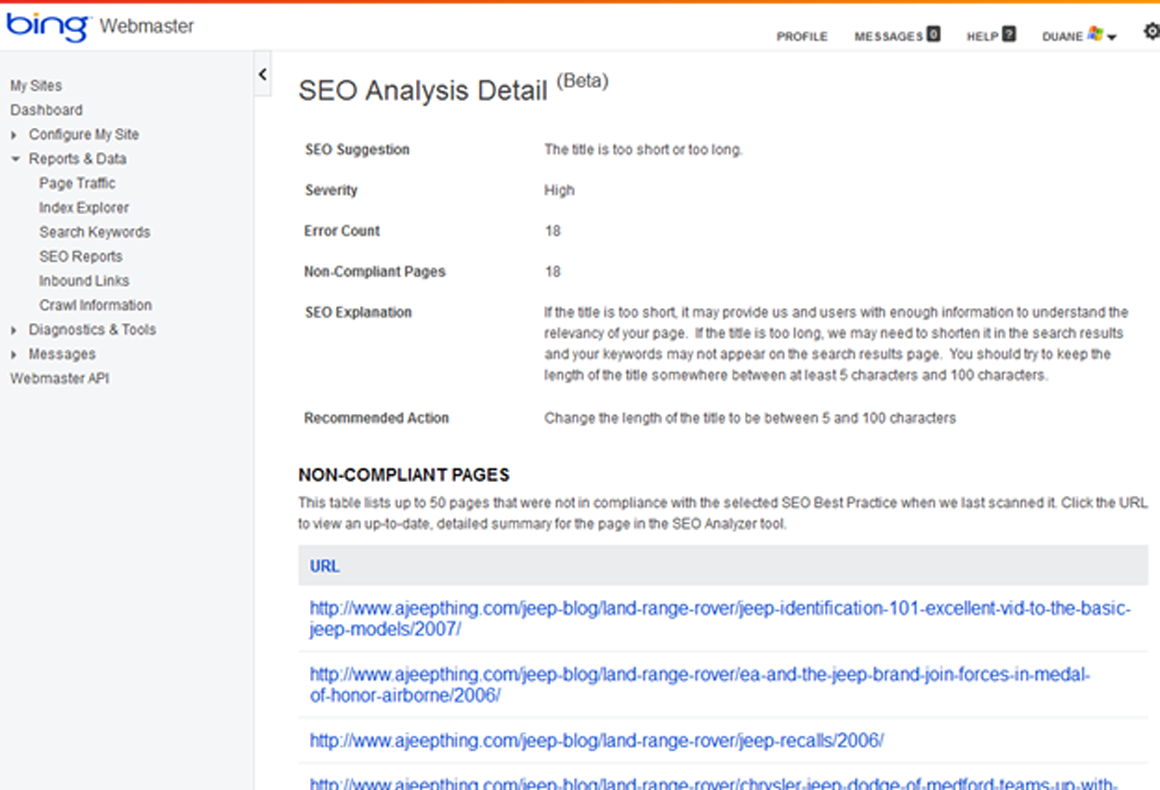
Bing Webmaster Tools provides information in a way that non-Web gurus can understand, and lets you see how your Web pages rate. It generates reports based on a set of SEO best practices and helps you fine-tune your website with page-level recommendations. The Bing reports explain any potential issues and show a sample of pages affected by non-compliance with established SEO guidelines.
These five services just scratch the surface of Microsoft’s offerings, but using them can save your business money and give you tools to operate more effectively and efficiently. More importantly, they’ll put you on level playing field with much larger enterprises, and give your company a strategic edge over the competition.
Source : PCWorld

Dell really is pushing hard against the mindset that the PC is dead this week. The industry heavyweight had one of their largest PC launches ever and while tablets were a part of the launch, the devices didn’t eclipse the overall initiative. Personally, I think this is quite a strategic approach, simply because tablets haven’t been trending that well of late (particularly for Apple), and while volumes continue to rise, they are mostly tied to really cheap products.
Too much cheap product in any class hits a given market - which may very well stop buying everything. As some of you may recall, this is exactly what happened to Atari and the first big video game wave.
ctually, this just got me thinking about one of the biggest goofs the computer industry made - declaring the mainframe computer dead. It was a goof because over 30 years later it remains IBM’s most profitable platform. Think about it: the mainframe evolved to become a pretty effective large scale server and PCs are attempting to evolve to embrace tablets. So history may very well repeat itself - the PC may now be just as dead, or given this is Halloween month, just as undead as the mainframe.
Let’s talk about the Undeath of the PC and Dell’s launch this week.
iPad Year One
I recall the first year of Apple's iPad. It seemed like everyone had one and folks were carrying them to events I attended in increasing volumes and leaving their laptops (PCs) behind. By the end of the year, most people who gone through this transformation and, in their head, had killed their PCs were using MacBook Airs instead. Yet, they still seemed to think the PC was dead. The lesson? They really wanted to do more with their tablets than their device was capable of doing and so ended up with a laptop and a light carry weight. So they basically traded off price and battery life for a slightly more capable device.
But what if the iPad had been able to perform like a MacBook? Might they have stayed with the tablet solution? This is what Windows 8.1 and the new Dell hardware will be attempting to find out.
Windows 8 Phase 2
There were two big problem with Windows 8, it represented a major user interface change and we really, really hate user interface changes. No matter who does it or when they do it, we tend to complain up a blue streak when someone changes how we’ve become used to doing things.
For example, we’ve been capable of replacing steering wheels, break peddles, gas peddles and gear shifts with a single joystick which could be passed side to side if needed. However, car companies realized folks would have a cow if they were given the technology and never adopted it. When Windows 95 launched, Microsoft spent massively getting folks used to and excited about the new interface, yet with Windows 8 they threw out that book and marketing wasn’t even allowed to start really pushing the changes as advantages until the launch (months too late). So folks had a major cow about the change and even Microsoft’s own premier application bundle, Office, didn’t make the jump to the new interface (I still think someone should have been shot for that alone).
The second big problem was that the hardware needed to make Windows 8 sing mostly wasn’t ready. With a touch interface you really need reasonably priced touch hardware and that mostly didn’t exist either.
Wrapping Up: Dell Ready for 8.1
So Windows 8.1 now comes with folks a bit more used to the new interface and it has improvements that address many of the things which really irritated a lot of users. Dell’s products are designed specifically to make Windows 8.1 sing. Strong industrial design, incredibly beautiful high resolution touch screens, strong battery life, light weight and attractive prices.
It is my belief that had Windows 8 launched this way, (granted, with a year of marketing to get folks at least ready for the UI change), that launch would have gone much better. With the exception of Office still not being flipped to the new interface (and folks who don’t want to learn a new way of working with Office yet may appreciate the extra time anyway), the combination of this new Dell hardware and Windows 8.1 should be what the doctor ordered for fixing the demand problem with Windows 8.
Granted, it will still be up to the sales and marketing team from both Microsoft and Dell to actually create the demand - but at least this time those organizations will have products that support, rather than fight, the effort.
Subscribe to:
Posts (Atom)


Recent Comments