
Pinguy OS is a remastered Ubuntu with a lot of useful default applications - great for those who don't like to do a lot of tweaking and want an OS that "just works".
This is the final 13.10 release but it's called beta because only LTS releases are considered stable.
Non-LTS Pinguy OS releases use bleeding edge software - for instance, the latest 13.10 ships with XBMC 13 alpha as well as GNOME 13.10 which isn't included by default in Ubuntu 13.10 so it's not considered fully stable.
The latest Pinguy OS 13.10 ships with the GNOME 3.10 desktop with GNOME Shell as the default "shell", customized with various extensions. Since GNOME 3.10 is used, it means you'll get all the goodies available in the latest stable GNOME, which aren't available in Ubuntu 13.10 by default: client side decorations for applications such as GNOME Tweak Tool, GNOME Documents and so on, the new GNOME Shell System Menu, pagination in the GNOME Shell app picker, all the System Settings improvements included in GNOME 3.10 and more.
GNOME Shell customizations
Pinguy OS 13.10 continues to use Docky, like in the previous releases: a bottom dock used as a taskbar / app launcher and a second dock at the left with auto-hide enabled by default, which lets you quickly access the folders in your home directory.

For the menu, Pinguy OS 13.10 uses Gno-menu, a traditional styled GNOME Shell menu "that aims to offer all the essentials in a simple uncluttered intuitive interface". The Activities hot corner is disabled by default but you can enable it from the Gno-menu preferences or you can access the Activities Overview by using the Super (Windows) key:

Other GNOME Shell extensions enabled by default in Pinguy OS 13.10:
- Frippery move clock: moves the clock on the right;
- Media player indicator: Ubuntu Unity-like sound indicator;
- Messaging Menu: Unity-like messaging menu;
- TopIcons: shows legacy tray icons on the GNOME Shell Top Bar;
- User Themes: lets you change the GNOME Shell theme;
- Workspace indicator: displays an indicator on the GNOME Shell Top Bar that indicates the current workspace and lets you switch between workspaces;
- Appsearch: searches the software repository and provides results in the GNOME Shell overview.
- Ignore request hide titlebar: makes GNOME Shell ignore requests to hide the titlebar for maximized windows.
Important: there's a bug and all GNOME Shell extensions are turned off after a reboot. SeeTHIS Pinguy OS Forums post for a fix.
For the GTK theme, Pinguy OS 13.10 uses Zukitwo, with elementary window borders and Zukitwo as the default GNOME Shell theme. The default icon theme is the beautiful Faience Azur, but more are available, like elementary, all the Faience and Faenza icon themes and more.
Tweaks available by default
Pinguy OS 13.10 ships with various tweaks that contribute to a great default experience:
- Pipelight is installed by default so you can watch Netflix and other video streaming services that require Silverlight in Pinguy OS, without having to configure anything;
- TLP, a tool that applies various tweaks to your laptop to save battery power, is installed by default in the latest Pinguy OS 13.10;
- zram-config, an upstart script that enables Zram, is used by default for better performance. With this tweak, a RAM based block device is created which acts as a swap disk, but is compressed and stored in memory instead of swap disk (which is slow), allowing very fast I/O and increasing the amount of memory available before the system starts swapping to disk;
- preload is installed by default - this is a daemon that stores the frequently used files in memory for faster startup times;
- Profile Sync Daemon, a tool that moves the web browser profile to RAM, reducing disk writes and providing increased speed and responsiveness, is installed by default but not enabled.
Default applications
An interesting change in the latest Pinguy OS 13.10 is the addition of the Windows version of Adobe Flash, used instead of the native Linux Flash (which only receives bugfixes) thanks to Pipelight. And also, as I mentioned above, Silverlight has been added and enabled by default with the help of Pipelight
A new default application has been added: Variety, a cool wallpaper changer that can automatically download wallpapers from sources such as Wallbase, Flickr, Wallpapers.net and more.
Among the applications included by default with the latest Pinguy OS 13.10 are: Firefox 25, Thunderbird 24.1.1, LibreOffice 4.1.3, Nemo 2.0.8, Clementine 1.2.0 (but 1.2.1 is available as an update) Steam 1.0.0.45, Skype 4.2.0.11 VLC 2.0.8, GNOME Documents 3.10, Empathy 3.10.2, Deluge 3.6, Calibre 1.13.0, Cheese 3.10, XBMC 13 alpha, Spotify 0.9.4.183, GNOME Tweak Tool 3.10.1 and Ubuntu Software Center 13.10, among others, on top of GTK 3.10.5 and GNOME Shell 3.10.2.1.
Like Ubuntu 13.10, the latest PinguyOS includes the 3.11.0 Ubuntu Linux Kernel, Xorg server 1.14.3 and Mesa 9.2.1.
And as usual, codecs, Java (icedtea and OpenJRE), G-talk plugin and so on are all installed by default.
Download Pinguy OS 13.10 (beta 2 - final)
For support visit the Pinguy OS Forum.
Source : Web Upd8

Clement Lefebvre has announced that the release candidate for Linux Mint 16 is out and ready for testing: "The team is proud to announce the release of Linux Mint 16 'Petra' RC. Linux Mint 16 is the result of six months of incremental development on top of stable and reliable technologies. This new release comes with updated software and brings refinements and new features to make your desktop even more comfortable to use."
Download Linux Mint 16:
The Linux Mint site has a list of new features for MATE and for Cinnamon. Check them out to see what's new in Linux Mint 16.
Image credit: Linux Mint
Source : ITworld

Mac OS X 10.9 Mavericks is now available (download it for free from the Mac App Store), bringing iOS features into the fold along with other additions, including iBooks, Apple Maps, Finder Tabs, and a number of other time-saving enhancements. As a free download from the Mac App Store, Mavericks gives you better security, new features for all the core apps, and tons of handy additions that make it a no-brainer to upgrade.
Apple, on the other hand, is keeping its mobile and desktop OS separate, while bringing over iOS apps and features without significantly changing the way you use your computer.
What results is a Mac OS that remains familiar to its users, gives apps a cleaner look, brings more iOS apps to your desktop, fixes old bugs, and improves core technologies for power efficiency and responsiveness. On top of that, it features new interface elements for Safari, a new tagging system for file management, and much more. So while there are tons of new and useful features here, the Mac OS remains familiar, friendly, and functions mostly the way it always has.
Some changes, but mostly the same
With hardware, there are things you can change to make the experience different (thumbprint scanners and lighter hardware, as examples), but with a software upgrade like Mavericks, it's tough to think of new features at this point that will truly wow users short of tapping directly into your brain. I kid, but how much is there left to add to our operating systems that will change the way we work with computers that really is for the better? I suppose it's a question the big companies are wrangling with now, so we'll have to see what happens as time wears on.
With hardware, there are things you can change to make the experience different (thumbprint scanners and lighter hardware, as examples), but with a software upgrade like Mavericks, it's tough to think of new features at this point that will truly wow users short of tapping directly into your brain. I kid, but how much is there left to add to our operating systems that will change the way we work with computers that really is for the better? I suppose it's a question the big companies are wrangling with now, so we'll have to see what happens as time wears on.

Installation
Installing OS X couldn't be easier, requiring just a quick trip to the Mac App Store and hitting the download button. I should note that my experience was not typical because I had to download several successive developer previews before downloading the final version. But most people will just download and install the new update, which takes about 20 minutes including an automatic restart of the computer.
Installing OS X couldn't be easier, requiring just a quick trip to the Mac App Store and hitting the download button. I should note that my experience was not typical because I had to download several successive developer previews before downloading the final version. But most people will just download and install the new update, which takes about 20 minutes including an automatic restart of the computer.
Finder Tabs
The new Finder Tabs work much in the same way the tabs do in Safari. A plus-sign button on the right lets you open a new tab, and you can drag and drop tabs just like in a Web browser. With Finder tabs, you'll be able to have two folders open side-by-side in one window, and you can simply drag and drop files across rather than copying and pasting like you would need to in earlier versions of the OS.
The new Finder Tabs work much in the same way the tabs do in Safari. A plus-sign button on the right lets you open a new tab, and you can drag and drop tabs just like in a Web browser. With Finder tabs, you'll be able to have two folders open side-by-side in one window, and you can simply drag and drop files across rather than copying and pasting like you would need to in earlier versions of the OS.
Full-screen apps
Full-screen apps were unveiled originally in Lion, but users quickly realized the feature wasn't perfect, especially if you use multiple monitors. Fortunately with Mavericks, the feature now finally works the way it should. You can now put full-screen apps on multiple monitors and switch among them effortlessly.
Full-screen apps were unveiled originally in Lion, but users quickly realized the feature wasn't perfect, especially if you use multiple monitors. Fortunately with Mavericks, the feature now finally works the way it should. You can now put full-screen apps on multiple monitors and switch among them effortlessly.
Apple Maps
Apple Maps got off to a rocky start with iOS, but has improved considerably over time. Testing it out on a MacBook Pro, the app felt great when navigating with a trackpad, with smooth movement and intuitive gesture control. Everything works about the same as it does on iOS, but some extra features will come in handy for getting directions before you leave your computer.
Apple Maps got off to a rocky start with iOS, but has improved considerably over time. Testing it out on a MacBook Pro, the app felt great when navigating with a trackpad, with smooth movement and intuitive gesture control. Everything works about the same as it does on iOS, but some extra features will come in handy for getting directions before you leave your computer.
Now, you can find locations on Maps on your Mac, then sync directions with your other devices, and -- just like the iOS version -- driving times account for traffic. This will be especially useful for planning your trip at home, then quickly syncing with your iPhone for turn-by-turn directions when you hit the road.
Maps is built into the Mail, Contacts, and Calendar apps, too. So any time you see an address, you can quickly find it on a map and switch to Apple Maps for a better view and to get directions.
iBooks
As one of the features brought over from iOS devices, iBooks looks pretty much like its mobile counterpart. Just like on iOS devices you'll be able to read and shop for books on your Mac and sync them with iCloud so you can switch devices and never lose your place. You'll also be able to swipe to turn pages (using your trackpad), pinch to zoom in on pictures, and scroll smoothly from page to page. You can have as many books open as you want simultaneously (great for students), and you can highlight sections and take notes -- all of which is synced on all your iOS devices. While this will be nothing new for iOS users, it's great to finally see these features available for Macs.
As one of the features brought over from iOS devices, iBooks looks pretty much like its mobile counterpart. Just like on iOS devices you'll be able to read and shop for books on your Mac and sync them with iCloud so you can switch devices and never lose your place. You'll also be able to swipe to turn pages (using your trackpad), pinch to zoom in on pictures, and scroll smoothly from page to page. You can have as many books open as you want simultaneously (great for students), and you can highlight sections and take notes -- all of which is synced on all your iOS devices. While this will be nothing new for iOS users, it's great to finally see these features available for Macs.

Safari
According to Apple, Safari now demands less from the GPU, uses less energy, and is faster than ever before. Apple says new Nitro Tiered JIT and Fast Start technologies in Safari mean Web pages feel snappier and the app doesn't waste power on Web pages and plug-ins that might churn continuously in the background. That all sounds great, but we're going to test the latest Safari with the older version side by side on two laptops, to see if we notice a huge difference in performance. Perhaps the performance increases are something that would be more obvious on a slower connection, but we'll have to wait and see if it really makes a difference when we take it down to our labs. Check back here soon to see the results.
According to Apple, Safari now demands less from the GPU, uses less energy, and is faster than ever before. Apple says new Nitro Tiered JIT and Fast Start technologies in Safari mean Web pages feel snappier and the app doesn't waste power on Web pages and plug-ins that might churn continuously in the background. That all sounds great, but we're going to test the latest Safari with the older version side by side on two laptops, to see if we notice a huge difference in performance. Perhaps the performance increases are something that would be more obvious on a slower connection, but we'll have to wait and see if it really makes a difference when we take it down to our labs. Check back here soon to see the results.
One big improvement in Safari is the new sidebar that keeps your bookmarks close at hand, and you can use tabs at the top of the sidebar to get to your Reading List and another new feature called Shared Links. Shared Links are recent links from people you follow on both Twitter and LinkedIn, giving you another option for discovering new Web sites and other interesting content from people who use those social networks. The sidebar is probably my favorite new feature improvement in Safari because I like quickly switching between Web sites.

Calendar
The Calendar app got a fresh look in Mavericks, adding Facebook integration to show Facebook events along with an Event Inspector that lets you get more information about a party, meeting, or location.
The Calendar app got a fresh look in Mavericks, adding Facebook integration to show Facebook events along with an Event Inspector that lets you get more information about a party, meeting, or location.
Now you can mouse over an event to bring up the Inspector, where you'll find handy information like driving time to the event with traffic information supplied by Maps and the current weather at the event location. Clicking on the map portion of the window launches Maps, where you can take advantage of the 3D views, switch map overlays, get directions, and do other useful things, such as send the directions to your iPhone.
The interface has also been tweaked to include smooth, continuous scrolling between days, weeks, and months, and it works very well using the MacBook trackpad.
Notifications
The Notifications system got some tweaks as well. Notifications are more interactive in Mavericks, so if you receive a message, an e-mail, or a FaceTime video call, you can react within the notification window with a reply or launch FaceTime straight away.
The Notifications system got some tweaks as well. Notifications are more interactive in Mavericks, so if you receive a message, an e-mail, or a FaceTime video call, you can react within the notification window with a reply or launch FaceTime straight away.

iCloud Keychain keeps your log-ins safe
There have been a number of great third-party apps over the years to manage usernames and passwords, but iCloud Keychain brings the functionality straight to your Mac for added security (not to mention relieving you of remembering all those passwords). It also makes your saved Web site usernames and passwords available on all your iOS devices. All of this information is protected using 256-bit AES encryption both on your devices and while in transit. Apple says that it only sees the already encrypted data and -- the way it is set up -- does not have the key to decrypt it.
There have been a number of great third-party apps over the years to manage usernames and passwords, but iCloud Keychain brings the functionality straight to your Mac for added security (not to mention relieving you of remembering all those passwords). It also makes your saved Web site usernames and passwords available on all your iOS devices. All of this information is protected using 256-bit AES encryption both on your devices and while in transit. Apple says that it only sees the already encrypted data and -- the way it is set up -- does not have the key to decrypt it.
Like popular third-party password managers, iCloud Keychain will suggest complex passwords, then push them to all your devices. It also autofills log-in fields so you don't need to remember them.
Pricing and availability
Apple Mavericks is available now, and -- after a surprise announcement at the Apple event -- is free to all users, even if you're currently running an OS as old as Snow Leopard (2007). Mountain Lion cost users $19.99 to upgrade, and I expected it would be the same for Mavericks, but it's a great move for Apple to decide to make the new OS free when Windows users are stuck paying quite a lot more to upgrade.
Apple Mavericks is available now, and -- after a surprise announcement at the Apple event -- is free to all users, even if you're currently running an OS as old as Snow Leopard (2007). Mountain Lion cost users $19.99 to upgrade, and I expected it would be the same for Mavericks, but it's a great move for Apple to decide to make the new OS free when Windows users are stuck paying quite a lot more to upgrade.
Conclusion
Mac OS X Mavericks is not a sweeping change, but improves upon a solid foundation, with new features brought over from iOS to give Mac users more to work and play with. For Mac users I think the added features provide definite benefits and, as a free upgrade, why not add new useful features? But is Mavericks ambitious enough to woo Windows users into making the switch? Probably not, but I think there's more to consider than just the feature set of the latest Mac OS.
Mac OS X Mavericks is not a sweeping change, but improves upon a solid foundation, with new features brought over from iOS to give Mac users more to work and play with. For Mac users I think the added features provide definite benefits and, as a free upgrade, why not add new useful features? But is Mavericks ambitious enough to woo Windows users into making the switch? Probably not, but I think there's more to consider than just the feature set of the latest Mac OS.
Though with Windows 8.1 Microsoft has made some concessions to people who didn't like the touch-focused interface (adding a Start button and letting you boot to desktop), it's still off-putting to many mouse-and-keyboard desktop users. To be honest, I happen to think Windows 8.1 is a fine upgrade on many fronts, but I also know people are resistant to change. With Windows 8 you get a completely new experience with the Start menu and metro apps, and not everyone likes the new way of interacting with Windows. So, what we're probably going to see are Windows users making the switch to Mac more in protest of Microsoft's vision rather than for what they think Mac OS X has to offer.
For Mac users, Mavericks is a solid (though not life-changing) upgrade, especially when it is no cost to current OS X users. And for Windows users looking for anything other than "Metro," Mavericks will be an easier transition than ever, with more features that add convenience and speed to a (now) familiar way of computing.
Source : CNET News
Image : Jason Parker/CNET

In a rare move, Apple has announced upcoming features it plans to add back to its iWork productivity suite on the Mac. Following the release of the redesigned iWork apps last month, many users complained about how Apple had removed features from past versions. Pages 5 was even called an “unmitigated disaster” by some.
Features from iWork ’09 that are no longer present will be added back to Pages, Keynote, and Numbers in the coming months, according to Apple. “Brand new features” will also be added “on an ongoing basis” through updates in the Mac App Store.
Here are some of the features Apple will add back in the next 6 months:
Pages
- Customize toolbar
- Vertical ruler
- Improved alignment guides
- Improved object placement
- Import of cells with images
- Improved word counts
- Keyboard shortcuts for styles
- Manage pages and sections from the thumbnail view
Numbers
- Customize toolbar
- Improvements to zoom and window placement
- Multi-column and range sort
- Auto-complete text in cells
- Page headers and footers
- Improvements to AppleScript support
Keynote
- Customize toolbar
- Restoring old transitions and builds
- Improvements to presenter display
- Improvements to AppleScript support
Apple notes that iWork ’09 should still be available in your Mac’s Applications folder if you’ve downloaded the new versions. Apple is now offering iWork for free to new and existing users.
Source : Apple

Driver support for graphics cards can be a major stumbling block for would-be Linux gamers. Since fewer people use Linux (and most games are created with Windows in mind), driver support for the operating system can be a bit, well, hit-or-miss.
AMD
AMD has actually been pretty active in the Linux community in recent memory, though its open-source Linux drivers still lag behind its Windows drivers. Just a few months back, the company released a massive set of 165 kernel patches that enabled some key features in Linux Radeon drivers, such as dynamic power management and initial support for the "Sea Islands" family of GPUs.
AMD's holding a GPU showcase in Hawaii on Wednesday. A new series of graphics cards are almost certainly going to be the stars of the show, but corporate VP Raja Koduri said there will also be news concerning Linux driver support, according to AnandTech. The AMD GPU showcase is expected to start around the same time that Valve unveils its second Steam-related announcement for the week.
Nvidia
Nvidia's relationship with Linux has been a bit more, shall we say, tense.
In July 2012, after a woman at a group chat session described her frustrations trying to use Nvidia's power-saving Optimus technology, Linux creator Linus Torvalds launched into an expletive-riddled tirade.
"Nvidia has been the single worst company we've dealt with," he said, before turning towards the video camera and extending his middle finger. "Nvidia... F*** you!" he hissed, uttering the words slowly and sharply.
To be fair, Nvidia does a decent job of supplying basic (or better!) Linux drivers for its latest graphics cards, and the company took issue with the remarks. Nvidia's drivers, however, are closed source, and unlike AMD, it hasn't traditionally offered open source drivers or documentation, which doesn't sit well with fanatical Linux lovers.
That changed on Monday--the same day SteamOS was announced.
That day, Nvidia's Andy Ritger messaged members of Noveau--the group that reverse-engineers Nvidia's closed-source Linux drivers to create an open-source alternative--and said Nvidia developers working on the closed-sourced Linux GPU drivers will start paying attention to the Noveau mailing group, offering assistance when possible. Additionally, Ritger said Nvidia will provide more official help.
Source : Computerworld

GNOME has always been about making things simple for users, and the revamped ‘System Menu’ in today’s release certainly does that.
The newly-named ‘System Status Menu’ groups together all of the indicators and applets one would’ve accessed individually – WiFi, Bluetooth, Volume, etc. – into one super-compact über-menu.
By transitioning to a more concise drop-down menu GNOME say several issues with the previous design havenow been addressed:
- Small icons were difficult to aim for with a mouse
- Screen brightness didn’t warrant its own applet
- User’s name being visible was a privacy concern
- Information was split out requiring multiple clicks
The new System Status Menu offers a quick overview of the ‘information you care about’, say developers. Options for WiFi, power, etc. are now hidden out of sight until you need them.
Welcome additions to the menu include a brightness slider, improved airplane mode, and connecting to WiFi networks from the menu is now more coherent.
GTK Client Side Decorations
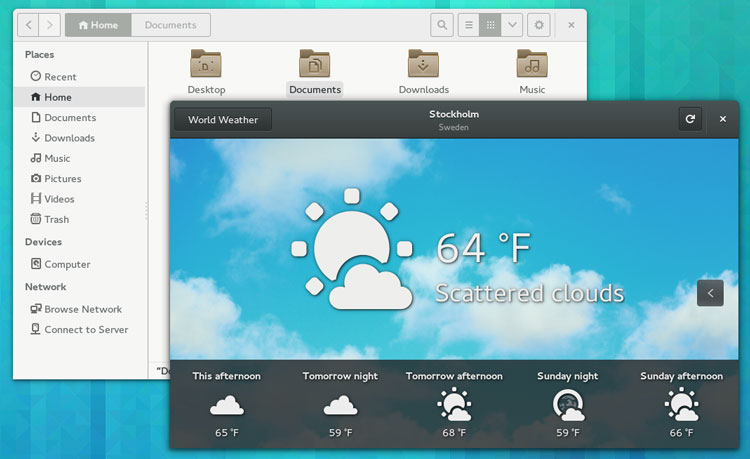
The most striking visual change in this release is without a doubt the new GNOME ‘Header Bars’.
Header Bars merge titlebars and toolbars into a single element, giving more screen space to window content.
But aside from making more efficient use of screen space, Header Bars are also able to change to display controls and options related to the current view of the app:

Finally, following GNOME’s controversial decision to drop the minimise button from app windows, the only control left visible is that of the close button.
Software Centre Preview
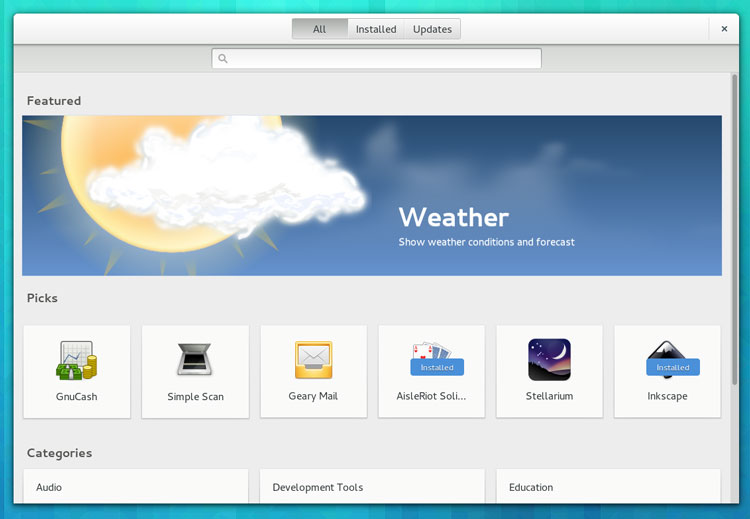
The first of several app previews in this release is GNOME’s distro-agnostic ‘Software’ store.
I say ‘distro-agnostic’ as, in theory at least, it will use data from the system it’s installed on – in Ubuntu’s case that means you can search for, see, and install the same apps as in the Software Centre.
Though a ‘preview’ – i.e. far from feature complete – it already covers most of the more common software-management activities:
- Install and remove applications
- Install software updates
- Search for applications by name
- Browse for apps by category
More features are planned over the coming months, including software ratings and application screenshots.
Application Pager
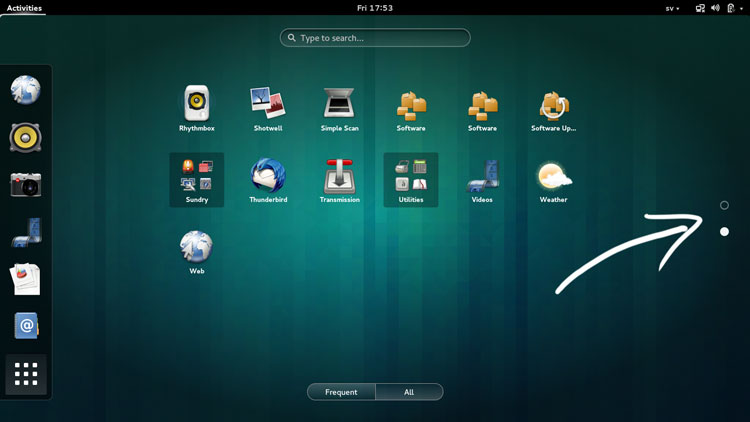
The Activities Overview was rejigged a little in the March stable release, separating out applications into two tabs: ‘Frequent’ and ‘All’.
GNOME 3.10 hones the usability of the ‘All’ section by adding ‘pagination indicators’ to the side of the screen rather than, as before, simply presenting them as an endless list of icons.
It’s a subtle change, admittedly, but it’s one that gives the Activities Overview a cleaner look.
GNOME Music (Preview)
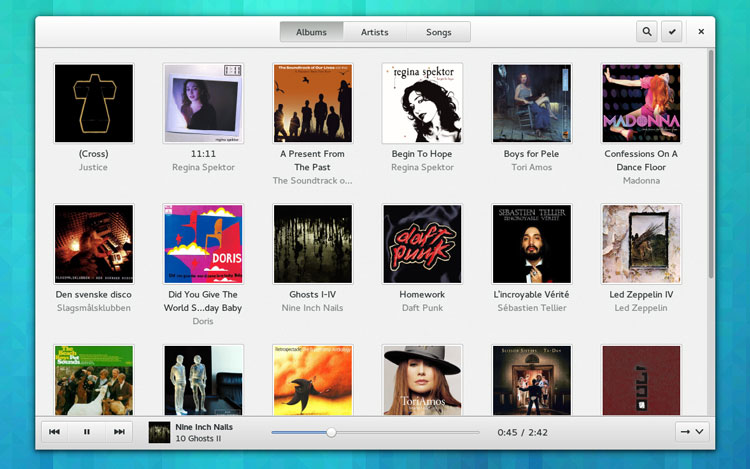
GNOME’s slick new music app isn’t quite ready to take centre stage yet, but is included in 3.10 as a warm-up act.
Compared to Rhythmbox, the ‘default’ music app in GNOME, it is basic on features. You won’t, for example, find crossfading options, last.fm scrobbling, or an equaliser, but it does play music and let you browse your library by artist or album using a clean, streamlined interface.
As for the future GNOME say that users can expect integration with online music streaming services and UPnP server access to feature.
Definitely one app to keep an ear to the ground for.
Date and Time
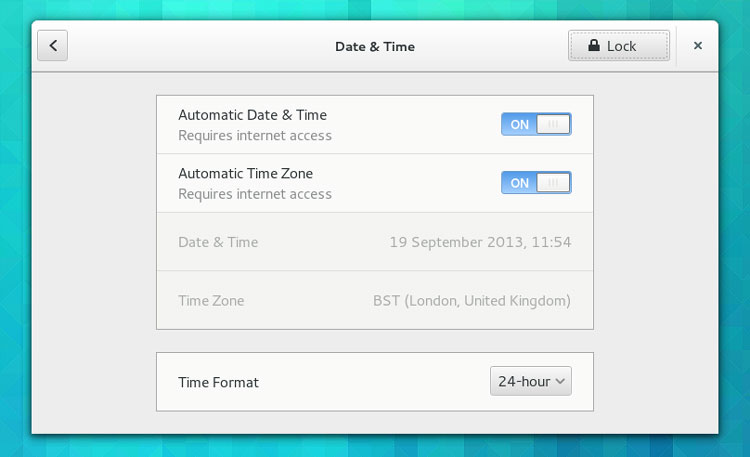
It’s not something you use often but, when you do, you’ll notice that the Date & Time Settings have received some design attention, including the addition of a much bigger time zone map.
You’ll also see that a new option – Automatic Time Zone – appears in the main pane. This uses GNOME’s new geolocation framework debuting in 3.10 and used by the new GNOME Maps app (see below).
GNOME Maps (Preview)
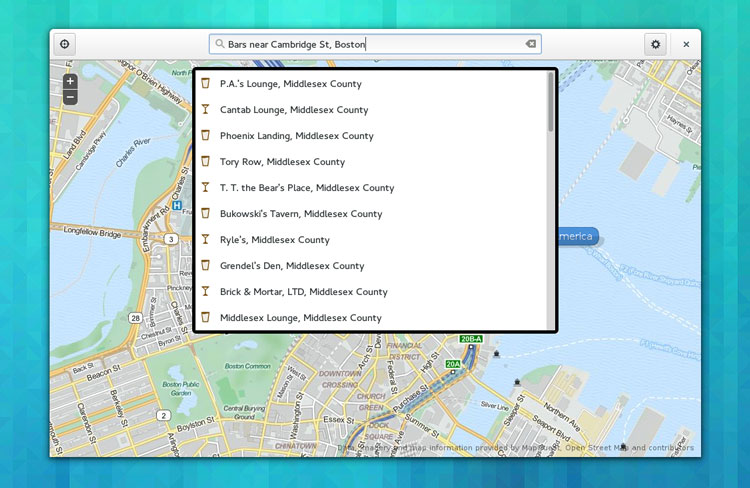
Another app preview shipped in this release is Maps.
I seem to be alone in really liking this app, but it’s the perfect example of an app doing one thing and doing it well – even at this early stage!
With GNOME Maps you can
- Search locations & attractions by name or phrase
- Get directions
- Pin your favourite places
- See your own location
- Find local businesses
The application uses OpenStreetMap for data so, if you see something that doesn’t look quite right, you can easily propose additions and amendments.
GNOME Photos (Preview)

Another app preview, this time one that focuses on helping you sift through your photo collection.
It’s not intended to be a full replacement for apps like Shotwell. Rather, GNOME Photos gives a better interface for going through folders full of images than Files (‘Nautilus’) does.
It also boasts online features with Flickr and sharing over UPnP.
High-Res Display Support
Google’s Chromebook Pixel, Apple’s Macbook Pro line, and a smattering of Intel Ultrabooks all have high-resolution displays in common. And ‘common’ is an apt word as more PC manufacturers are set to ship these pixel-dense screens in more devices over the coming year.
GNOME are ahead of the curve and 3.10 sees the first iteration of work on tailoring the GNOME desktop for hi-res monitors.
Get Personal

From 3.10, you’re able to personalise the GNOME desktop in some new ways.
For example, you can set a different background for the lock screen to that of your desktop and, if you have Flickr set up in Online Accounts, you can set a desktop background from one of your uploaded images.
Source : OMG Ubuntu
Ubuntu 13.10 Beta isn’t a dramatic departure from that it succeeds as Unity 7, the desktop environment, is on course to be replaced by Ubuntu 14.10 with a new, ‘convergent’ interface based on the Ubuntu Touch interface.
With that in mind focus has been less on adding new features and more on polishing what’s already there. But that doesn’t means there isn’t anything new to play with, as we’ll now see…
Unity Smart Scopes – Semantic Web Search from the Dash

Smart Scopes in Ubuntu 13.10
The ‘flagship feature’ in Ubuntu 13.10 is the new Smart Scopes service. It supercharges the Dash with semantic search results based on whatever keyword you enter.
So, for example, searching for ‘Firefox‘ will show you the application and any files you have with that word in, but also a barrage of (potentially useful) results from various web services (Wikipedia, News, etc.).
‘Ubuntu say that results will become more relevant as the service ’learns’ from users…’
The beginnings of the Smart Scopes Service can be traced back to Ubuntu 12.04 LTS and the inclusion of Amazon shopping results, while the full whack was due to feature in Ubuntu 13.04 – but was deemed too unstable to be included.
Development has certainly benefitted from those extra 6 months of sprucing, spit, and tuning. Results filter in quickly and seem more relevant than those offered up in earlier versions.
Ubuntu developers say that results will become more relevant as the service ‘learns’ from what users click on for a given search term.
But is the feature actually useful?
That judgement will be a personal one for you to make and will be based on how often you use Wikipedia, check the weather, or hunt for bargains.
In the meantime if you don’t like seeing music results from a certain site you can disable Scopes on an individual basis, or, if you don’t want to see anything from the web, entirely.

Disabling a Smart Scope in Unity Is As Simple as Right-Clicking
xMir
Ubuntu 13.10 is an important release for Canonical’s new display server technology ‘Mir’, as xMir, a ‘fallback’ for software and setups requiring an X server, ships by default on desktops using free graphics drivers.
‘Everything will continue to look and function as normal under xMir.’
Though this change may sound dramatic there is a good chance you won’t notice any difference – everything will continue to look and function as normal under xMir, with barely a negligible hit on performance.
One important thing to note is that, as proprietary graphics card drivers currently lack support for Mir, those using them will instead find their desktops ‘fallback’ to using the traditional X windowing system.
Canonical expect this situation to change by next April’s release when the X Server ‘fallback’ is set to be removed.
Unity 7
Whether running on xMir or regular ol’ X, Unity is running faster thanks to ongoing work in fine-tuning Compiz.
And with word that Unity 8 won’t be debuting on the desktop until Ubuntu 14.10 (originally aimed for 14.04 LTS) these tweaks will give the reprieved Unity 7 some now-needed longevity.
Desktop Experience
A new ‘keyboard applet’ has been added, aimed at making switching keyboard layouts and languages easier.
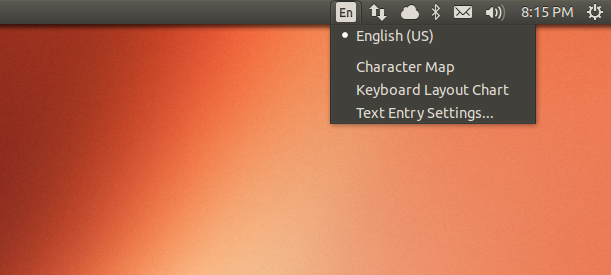
The new keyboard applet in ubuntu 13.10
Minor visual tweaks to Ubuntu’s default theme sees the appearance of the file manager finally look like it belongs:

Improved Look for GNOME Apps
There’s also a new icon for Apport – Ubuntu’s error reporting tool:

Splat! Bug reporting app gets new icon
Finally, there are 18 new community wallpapers to choose from, and a marginally different default background.
Applications & Misc
Despite some early discussion about switching, Firefox remains Ubuntu’s web browser of choice, sitting on version 24 in this beta.
LibreOffice has been bumped up to version 4.1.1, while various system apps have been updated to their GNOME 3.8 counterparts, including Files, Disks and Rhythmbox.
Ubiquity, Ubuntu’s installer, now includes an additional step, one that allows you to configure your Ubuntu One account prior to installation.
Finally, this beta ships with the 3.11.0-8.15 Ubuntu Linux kernel under the hood.
Download Ubuntu 13.10 Beta
Downloads are available for testing. The usual caveats apply here: they could be a bit dodgy, buggy and/or crash prone. Don’t install them unless you’re adept enough at fixing the fallout.
Subscribe to:
Posts (Atom)


Recent Comments