
Mac OS X transformation pack is ready for Ubuntu 13.10 Saucy/Linux Mint 16. This transformation pack has been completed with collaboration of haniahmed (One Gnome Shell theme) and mbossg (One Gtk theme + two icon sets) both guys did really fine job. Mac themes for Linux are almost stopped but we kept this project on our list from 12.04, and now we release Mac transformation for every new Ubuntu release. Many people look over the internet for pre-configured Mac look like Macbuntu 13.10/Mac4lin, Mac Ubuntu theme and so on, but it is good idea to transform it by yourself because if you want to change to old/other look you can do that easily. This method of transformation doesn't use any excessive memory/CPU/and other resources.
This time NoobsLab is offering four Mac GTK themes, two Gnome Shell and one Cinnamon theme. Cinnamon theme isn't very close to Mac but it can give Mac feel to panel. This time we included three icon packs which are somewhat different from each other.
Note: If you encounter any bug in theme/icons/any stuff, Report us with screenshot or problem with details.
What's new in this Version?
- Themes are shiny, smooth, and fast
- Mac Boot Splash auto configuration
- Four GTK Themes
- Two Gnome Shell Themes
- One Cinnamon Theme
- Three Icon Sets
Latest Cairo Dock
sudo add-apt-repository ppa:cairo-dock-team/ppa
sudo apt-get update
sudo apt-get install cairo-dock cairo-dock-plug-ins
Apple Logo in Launcher
Enter following commands to install Apple Logo:
Terminal Commands:
wget -O launcher_bfb.png http://goo.gl/7AIQCA
sudo mv launcher_bfb.png /usr/share/unity/icons/
If you want back Ubuntu logo enter following commands in terminal:
Terminal Commands:
wget -O launcher_bfb.png http://goo.gl/fm8BIe
sudo mv launcher_bfb.png /usr/share/unity/icons/
Apply MBuntu Splash:
Enter following commands to install splash:
Terminal Commands:
sudo add-apt-repository ppa:noobslab/themes
sudo apt-get update
sudo apt-get install mbuntu-bscreen-v2
If you don't like MBuntu Splash, You can get back Ubuntu splash:
Enter following command to remove splash:
Terminal Command:
sudo apt-get remove mbuntu-bscreen-v2
Mac OS X Lion Theme, Icons and cursors:
Enter these commands in terminal to get themes, icons and cursors.
Terminal Commands:
sudo add-apt-repository ppa:noobslab/themes
sudo apt-get update
sudo apt-get install mac-icons-v2-noobslab
sudo apt-get install mac-ithemes-v2-noobslab
After installation choose theme, icons and mac cursor from tweak tool.
To Uninstall themes, icons and cursors
Terminal Commands:
cd /usr/share/icons/mac-cursors && sudo ./uninstall-mac-cursors.sh
sudo apt-get autoremove mac-icons-v2-noobslab mac-ithemes-v2-noobslab
8: Disable Crash reports:
Sometime Ubuntu displays crash reports, If you want to get rid of crash reports then disable it via following command:
Terminal Command:
sudo sed -i "s/enabled=1/enabled=0/g" '/etc/default/apport'
Source : Noobslab

This time NoobsLab is offering four Mac GTK themes, two Gnome Shell and one Cinnamon theme. Cinnamon theme isn't very close to Mac but it can give Mac feel to panel. This time we included three icon packs which are somewhat different from each other.
What's new in this Version?
- Themes are shiny, smooth, and fast
- Mac Boot Splash auto configuration
- Four GTK Themes
- Two Gnome Shell Themes
- One Cinnamon Theme
- Three Icon Sets
Latest Cairo Dock
Enter following commands to install Cairo-DockRight Click on Cairo Dock -> Select Launch Cairo-Dock on Startup

3: Remove Overlay Scrollbars
Enter following command in terminal to disable overlay scrollbar:
If you want to get back overlay bar, enter following command:
4: Indicator Synapse (Alternative to Spotlight)
This time we brought another Mac feature called "spotlight", It does same function like spotlight in Mac.
5: Apple Logo in Launcher
Enter following commands to install Apple Logo:
If you want back Ubuntu logo enter following commands in terminal:
6: Apply MBuntu Splash:
Enter following commands to install splash:
If you don't like MBuntu Splash, You can get back Ubuntu splash:
Enter following command to remove splash:
7: Mac OS X Lion Theme, Icons and cursors:
Enter these commands in terminal to get themes, icons and cursors.After installation choose theme, icons and mac cursor from tweak tool.
To Uninstall themes, icons and cursors
8: Disable Crash reports:
Sometime Ubuntu displays crash reports, If you want to get rid of crash reports then disable it via following command:9: Auto-hide Unity Launcher:
You can hide unity launcher from Appearance -> Behavior and turn off.
10: Unity/Gnome Tweak Tool to change Themes, Icons:
You can use these popular tools to change themes and icons in Ubuntu, Also you can change other settings from these tweak tools. You can also install Ubuntu Tweak.
11: Remove White Dots and Ubuntu Logo from Login Screen:

Enter following commands in terminal to remove white dots and Ubuntu logo:
If you want to revert back then use following commands.
12: (Optional) Mac fonts:
We used Mac fonts in screenshots, and a user asked for fonts. So here are fonts for you.
Source : Noobslab

To install Elune theme set in Ubuntu/Linux Mint open Terminal (Press Ctrl+Alt+T) and copy the following commands in the Terminal:
Terminal Commands:
sudo add-apt-repository ppa:noobslab/themes
sudo apt-get update
sudo apt-get install elune-set
Bauraturia Theme (Gnome Shell + Cinnamon)
Bauraturia Theme is dark theme designed for Gnome Shell and Cinnamon. After initial release of this theme, recently developer improved various aspects and fixed things in this theme. This theme also provide support for GnoMenu Extension and various other extensions like (Task Bar, Sticky Notes, Workspace Indicator, Workspace Bar, Text Translator, System Monitor, Frippery Bottom Panel, Workspace Grid, Transmission Deamon, and Weather)
To install Bauraturia theme set in Ubuntu/Linux Mint open Terminal (Press Ctrl+Alt+T) and copy the following commands in the Terminal:
Terminal Commands:
sudo add-apt-repository ppa:noobslab/themes
sudo apt-get update
sudo apt-get install bauraturia-set
Via : Noobslab
Credits: Elune-GS, Elune-Cinnamon, Bauraturia-GS, Bauraturia-Cinnamon

To install eOS theme on Ubuntu/Linux Mint open Terminal (Press Ctrl+Alt+T) and copy the following commands in the Terminal:
Terminal Commands:
sudo add-apt-repository ppa:noobslab/themes
sudo apt-get update
sudo apt-get install eos-gs
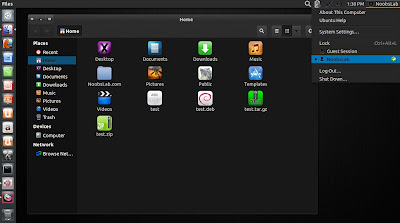
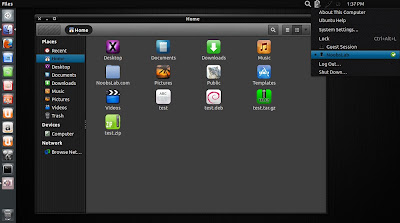
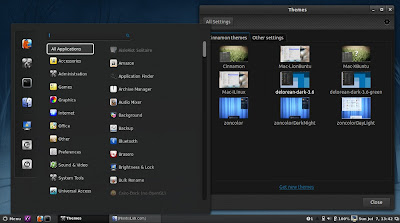
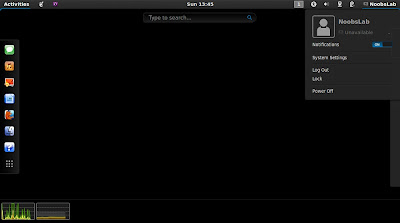
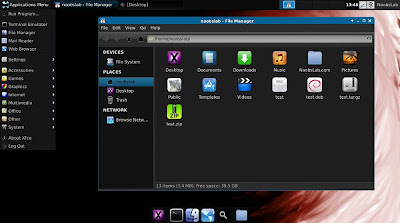
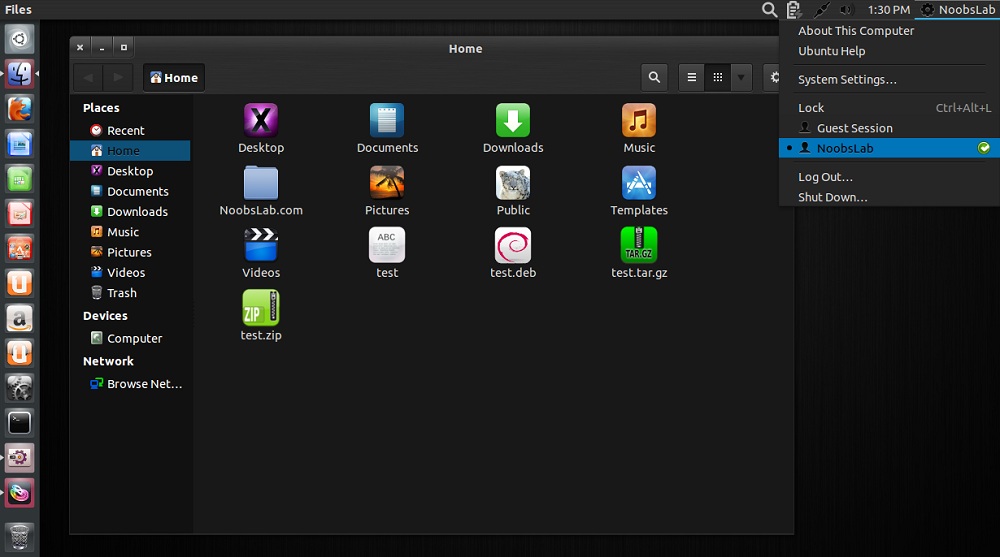
DeLorean-Dark for those who like dark themes, This theme is available
for Gnome Shell+GTK 3.4/3.5/3.6/3.8. I tested this theme with Gnome
Shell 3.8/3.6 + Gtk 3.8/3.6 and it works perfectly. Theme developer
released final version but there can be some bugs, if you found any bug
report to developer via source link. This theme is available in two
colors blue and green, and it is also available for Xfce4, Cinnamon
environments, Which is included in package and you can install it via
ppa.
1st: Download black wallpapers
2nd: iLinux icons used in screenshots. Also checkout icons collection,
3rd: You can use Unity Tweak Tool, Gnome-tweak-tool or Ubuntu-Tweak to change theme/icons.
To install DeLorean-Dark theme on Ubuntu/Linux Mint open Terminal (Press Ctrl+Alt+T) and copy the following commands in the Terminal:
sudo add-apt-repository ppa:noobslab/themes
sudo apt-get update
sudo apt-get install delorean-dark
Source: DeLorean Dark
GTK 3.6 version
GTK 3.8 version

Cinnamon version

Gnome Shell version

Xfce4 version

1st: Download black wallpapers
2nd: iLinux icons used in screenshots. Also checkout icons collection,
3rd: You can use Unity Tweak Tool, Gnome-tweak-tool or Ubuntu-Tweak to change theme/icons.
To install DeLorean-Dark theme on Ubuntu/Linux Mint open Terminal (Press Ctrl+Alt+T) and copy the following commands in the Terminal:
sudo add-apt-repository ppa:noobslab/themes
sudo apt-get update
sudo apt-get install delorean-dark
Source: DeLorean Dark

1: Trevilla Icons
These icons are well designed and more like metro style to nice look with Trevilla themes. These icons can be used with any kind of dark and light themes.To install Trevilla-icons in Ubuntu/Linux Mint open Terminal (Press Ctrl+Alt+T) and copy the following commands in the Terminal:
Terminal Commands:
sudo add-apt-repository ppa:noobslab/icons
sudo apt-get update
sudo apt-get install trevilla-icons
2: Trevilla Themes


To install Trevilla-themes in Ubuntu/Linux Mint open Terminal (Press Ctrl+Alt+T) and copy the following commands in the Terminal:
sudo add-apt-repository ppa:noobslab/themes
sudo apt-get update
sudo apt-get install trevilla-themes
Source: Trevilla
via Noobslab

Gnome-Pie is a circular application launcher for Linux. It is made of several pies, each consisting of multiple slices. The user presses a key stroke which opens the desired pie. By activating one of its slices, applications may be launched, key presses may be simulated or files can be opened.
What's new in 0.5.5 Release:
- Statistics are not tracked anymore and new users wont be questioned to send the statistics file. I got files by more than 150 users and was able to write a successful Bachelor thesis.
- A Bulgarian translation has been added.
- A Chinese translation has been added.
- It’s now possible to bind Pies to hot keys containing the Super-key (normally referred to as the Windows-key)
- It’s now possible to drag and drop Slices between Pies in the configuration window.
- A possible segmentation fault on start-up has been fixed.
To install Gnome-Pie in Ubuntu/Linux Mint open terminal (Press Ctrl+Alt+T) and copy the following commands in the Terminal:
Terminal Commands:
sudo add-apt-repository ppa:simonschneegans/testing
sudo apt-get update
sudo apt-get install gnome-pie
After installation open Gnome-pie from menu and press Ctrl+Alt+A to check Application menu, You can add or delete apps from preferences.
>> For other versions you can install from source:
For Gtk3 enter following command:
Terminal Command:
sudo apt-get install git build-essential libgtk-3-dev libcairo2-dev libappindicator3-dev libgee-dev libxml2-dev libxtst-dev libgnome-menu-3-dev valac cmake libunique-3.0-dev libbamf3-dev libwnck-3-dev bamfdaemon
For Gtk2 enter following command:
Terminal Command:
sudo apt-get install git build-essential libgtk2.0-dev libcairo2-dev libappindicator-dev libgee-dev libxml2-dev libxtst-dev libgnome-menu-dev valac cmake libunique-dev libbamf-dev libwnck-dev bamfdaemon
After above relevant command, Enter following commands in Terminal:
Terminal Commands:
git clone git://github.com/Simmesimme/Gnome-Pie.git
cd Gnome-Pie && ./make.sh
cd build && sudo make install
( via noobslab )
Source: Gnome-Pie

iLinux icons well designed, elegant icons and this icon set contain icons from Ubuntu, Windows and Mac. It gives different kind of feel on desktop. This icon set has more than 18,000 different icons and support all Ubuntu/Mint/and Ubuntu derivatives/Debian version. All credit goes to haniahmed who made these icon set. Also check icons collection.
You can use Unity Tweak Tool, Gnome-tweak-tool or Ubuntu-Tweak to change icons.


To install iLinux icons in Ubuntu 13.04/12.10/12.04/Linux Mint 15/14/13 open Terminal (Press Ctrl+Alt+T) and copy the following commands in the Terminal:
Terminal Commands:
sudo add-apt-repository ppa:noobslab/icons2
sudo apt-get update
sudo apt-get install ilinux-icons
To install iLinux icons in Debian/Any Ubuntu/Linux Mint open Terminal (Press Ctrl+Alt+T) and copy the following commands in the Terminal:
Terminal Commands:
cd && wget -O iLinux-icons-NoobsLab.deb http://goo.gl/GNgQuk
cd && sudo dpkg -i iLinux-icons-NoobsLab.deb
cd && rm iLinux-icons-NoobsLab.deb
via noobslab
That's it
Source: iLinux-icons
Subscribe to:
Posts (Atom)


Recent Comments